Top Watermark-Free Video Editors for TikTok Creators: CapCut, DaVinci Resolve, VN, InShot Pro, Canva Pro

Best Watermark-Free Video Editors for TikTok Creators
Looking for a fast, reliable video editor that doesn’t slap a watermark on your TikTok content? You’re in the right place. This guide quickly highlights the top watermark-free video editors for TikTok creators, explains strengths and limitations, and gives practical tips so you can edit like a pro and keep your brand clean.
Quick answer
For most TikTok creators, CapCut (mobile + desktop) and DaVinci Resolve (desktop) offer the best combination of no watermarks, advanced tools, and export quality. If you need fast, simple mobile editing without a learning curve, VN (VlogNow) and InShot Pro (paid) are excellent. For creators who want cloud-based collaboration and templates, Canva Pro removes watermarks for paid users.

Why watermark-free editing matters for TikTok
Watermarks can look amateurish, distract viewers, and interfere with TikTok’s visual layout (profile name overlays, captions, and stickers). Removing watermarks keeps your content consistent, improves perceived production value, and avoids potential algorithmic or audience bias against overtly branded or repurposed videos.
Top watermark-free video editors for TikTok creators
1. CapCut (mobile & desktop)
Best for: TikTok-native workflows and short-form content creators who want integrated effects and fast exports.
- Pros: Free, no watermark, native TikTok-style filters and transitions, built-in music library, easy mobile-to-desktop sync, direct export to TikTok.
- Cons: Some advanced features are limited compared with professional desktop editors; occasional UI changes as it evolves.
- Ideal use: Trend edits, multi-clip sequences, speed ramps, subtitles, and vertical-first formats.
- Pros: Robust free version with no watermark, industry-grade color tools, fairlight audio, Fusion VFX, excellent export control for vertical formats.
- Cons: Steeper learning curve; resource intensive (needs a capable PC/Mac).
- Ideal use: High-production TikToks, song covers, cinematic short-form pieces, creators repurposing longer content for TikTok.
- Pros: No watermark, lightweight, clean UI, basic transitions, speed/curve controls, subtitle generation, multi-track timeline.
- Cons: Fewer advanced color/VFX tools than desktop editors.
- Ideal use: Daily vlogs, reaction videos, quick edits, and vertical-first stories.
- Pros: Intuitive interface, stickers, text, transitions, built-in music, single purchase or subscription removes watermark and ads.
- Cons: Free version has watermark; low-end free features compared to some rivals.
- Ideal use: Social-ready edits, quick montages, and creators who want a clean paid solution on mobile.
- Pros: Easy templates for vertical video, team collaboration, stock assets, and exporting without watermarks on Pro plans.
- Cons: Not as feature-rich for detailed frame-by-frame editing; subscription required to remove watermarks and unlock premium assets.
- Ideal use: Branded series, text-heavy clips, educational microcontent, and creators managing multiple accounts.
- Pros: Free and open-source, no watermark, supports vertical presets, decent filters and transitions.
- Cons: Interface less polished than paid apps; learning curve for some features.
- Ideal use: Budget-conscious creators who want more control than mobile-only apps provide.
- Pros: Multi-track timelines, chroma key, blending modes, powerful mobile toolset; watermark removed with subscription.
- Cons: Watermark on free tier; subscription cost over time.
- Ideal use: Green-screen effects, layered edits, and creators who demand deeper mobile editing options.
- Where do you edit? Mobile-first creators will prefer CapCut, VN, or KineMaster; desktop editors like DaVinci Resolve or Shotcut are better for detailed work.
- How complex are your edits? For quick cuts and trends, mobile apps are faster. For color grading, audio mixing, or complex VFX, use desktop tools.
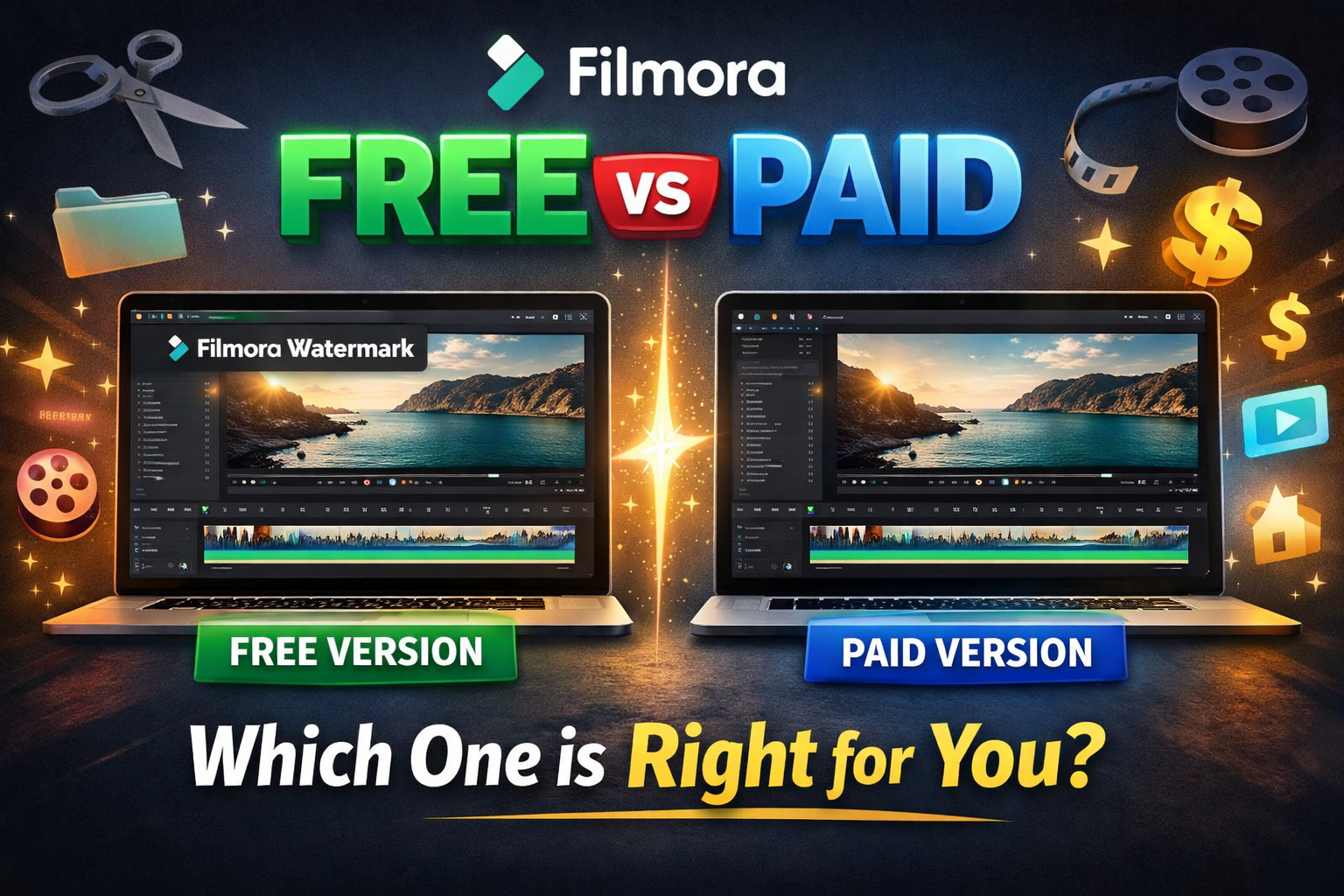
- Are you willing to pay? Free options (CapCut, DaVinci Resolve, VN, Shotcut) remove watermarks, while some apps require a one-time purchase or subscription to eliminate watermarks (InShot Pro, KineMaster, Canva Pro).
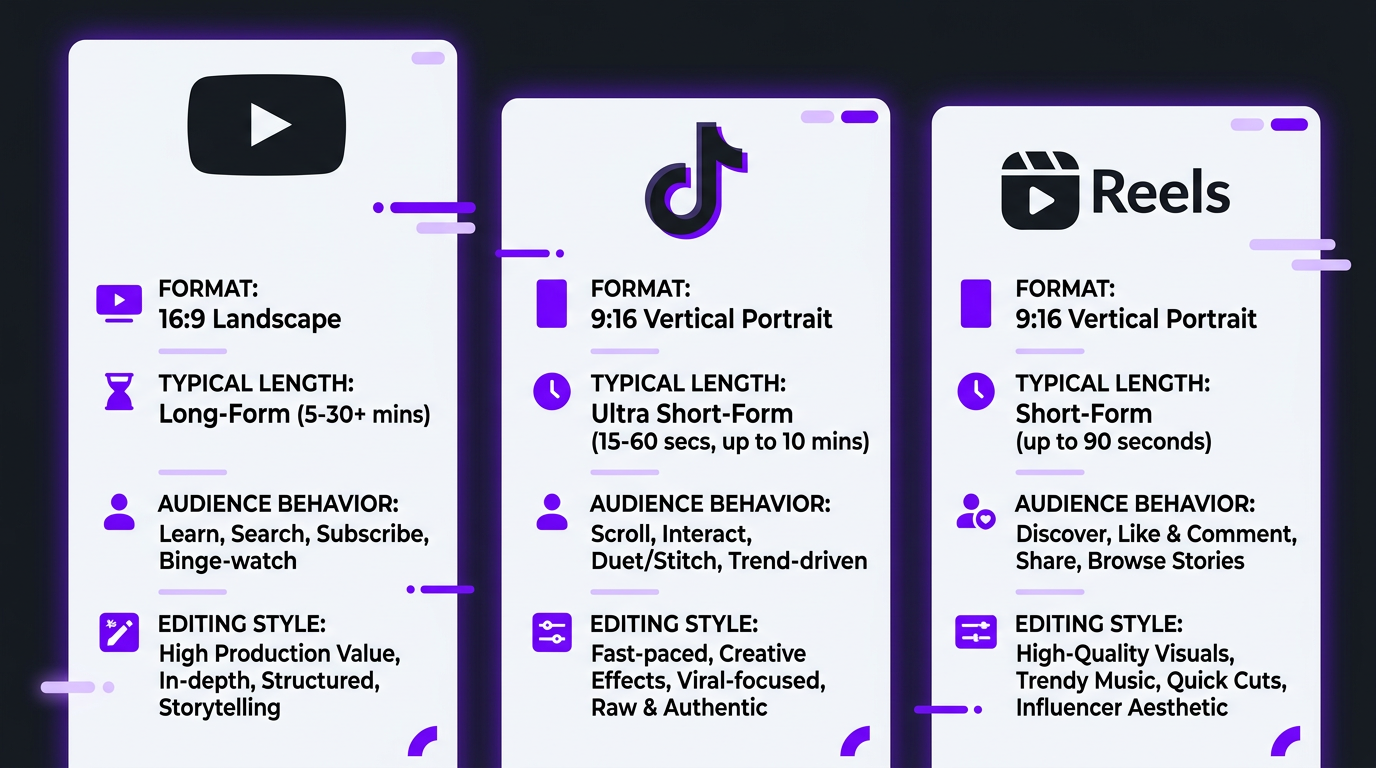
- Export in vertical 9:16 with the correct resolution (1080 x 1920 is standard). This prevents TikTok from cropping or adding borders that can interfere with overlays.
- Keep important visuals and text within the safe zone (center 80% of the frame) so TikTok UI elements don’t cover them.
- Use native TikTok effects sparingly — too many platform-specific overlays can still look inconsistent across reuploads.
- When repurposing content from other apps, always check the source for hidden watermarks or logos before uploading.
- Maintain brand consistency by creating a small template (font, color, intro/outro) in your editor so each video looks cohesive without external branding.
- Internal link idea: “How to Shoot Vertical Video for TikTok” — link to a guide on vertical framing and safe zones.
- Internal link idea: “Quick TikTok Audio Mixing Tips” — link to an article on balancing dialogue and music for short-form content.
- External link: Official CapCut download page or app store listing for accurate installation info.
- External link: Blackmagic Design’s DaVinci Resolve product page for system requirements and downloads.

2. DaVinci Resolve (desktop)
Best for: Creators who want professional color grading, audio mixing, and advanced effects without paying for a watermark-free license.
3. VN (VlogNow)
Best for: Mobile-first creators who want a free, straightforward editor with no watermark and a gentle learning curve.
4. InShot Pro (mobile — paid upgrade)
Best for: Creators who prefer InShot’s interface and are willing to pay once to remove watermarks permanently.
5. Canva Pro (web & mobile — paid)
Best for: Template-driven creators and teams who want consistent branding and quick repurposing across channels.
6. Shotcut (desktop)
Best for: Open-source enthusiasts who want a free, watermark-free desktop editor with a solid feature set.
7. KineMaster (mobile — paid upgrade)
Best for: Mobile creators who want layer-based editing and are willing to subscribe to remove watermarks.
How to choose the right editor for your TikTok workflow
Pick based on three main questions:
Practical tips for editing TikToks without watermarks
Common questions TikTok creators ask
Can I remove a watermark from a free app with editing tricks?
Technically you can crop or blur a watermark, but this reduces framing and quality and may violate the app’s terms of use. The better route is to use an editor that exports watermark-free or upgrade to a paid tier that legally removes the watermark.
Do watermarks affect TikTok distribution or reach?
TikTok hasn’t published a clear penalty for watermarked content, but creators report lower engagement on videos that look repurposed or heavily branded. Clean, native-looking uploads typically perform better.
Which editor is best if I want templates and fast branding?
Canva Pro and CapCut both excel with templates: Canva for brand consistency and team workflows, CapCut for TikTok-native template trends and effects.
Suggested internal and external links
Where to use FAQ, HowTo, or Article structured data
This article naturally supports FAQ structured data for the “Common questions” section and HowTo structured data for a step-by-step mini-guide (for example: “How to export a watermark-free vertical video for TikTok”). Adding those structured data blocks would help search engines surface direct answers and visual snippets.
Accessibility and image suggestions
Include screenshots showing the timeline layout in CapCut and DaVinci Resolve, and an example export setting dialog. Suggested alt text: “CapCut mobile editor showing vertical timeline and effects” and “DaVinci Resolve export settings with 1080×1920 resolution selected”.
Conclusion
CapCut and DaVinci Resolve are the standouts: CapCut for speed and TikTok-native editing, DaVinci Resolve for professional-quality output — both export without watermarks. For quick mobile editing without a learning curve, VN and InShot Pro (paid) are great; Canva Pro serves creators who rely on templates and collaboration. Choose based on platform, complexity, and whether you want to invest in a paid plan. Ready to try one? Download CapCut or VN for a free, watermark-free test run and see which workflow you prefer.
Call to action: Try exporting one vertical test video from two different apps (one mobile, one desktop) and compare quality, speed, and ease of use — then pick the editor that fits your creative rhythm.
