
How to Fix DirectX Runtime Errors in Modern PC Games
Direct answer: DirectX runtime errors usually stem from outdated or mismatched DirectX components, corrupted Visual C++ runtimes, GPU driver issues, missing system files, or conflicts with overlays and background software. Start by updating Windows and your GPU drivers, reinstalling DirectX and Visual C++ redistributables, and checking game files; then move to more targeted fixes like disabling overlays, testing hardware, or rolling back drivers if problems persist.

Why this happens (quick overview)
DirectX is a collection of Windows APIs that games use for graphics, audio, and input. Modern PC games rely on specific DirectX components and supporting runtimes, including the DirectX End-User Runtimes and Microsoft Visual C++ redistributables. If those components are missing, corrupted, or incompatible with your GPU drivers or game build, the game can crash at launch or during play with a DirectX runtime error. Background apps and system file corruption can also interfere.
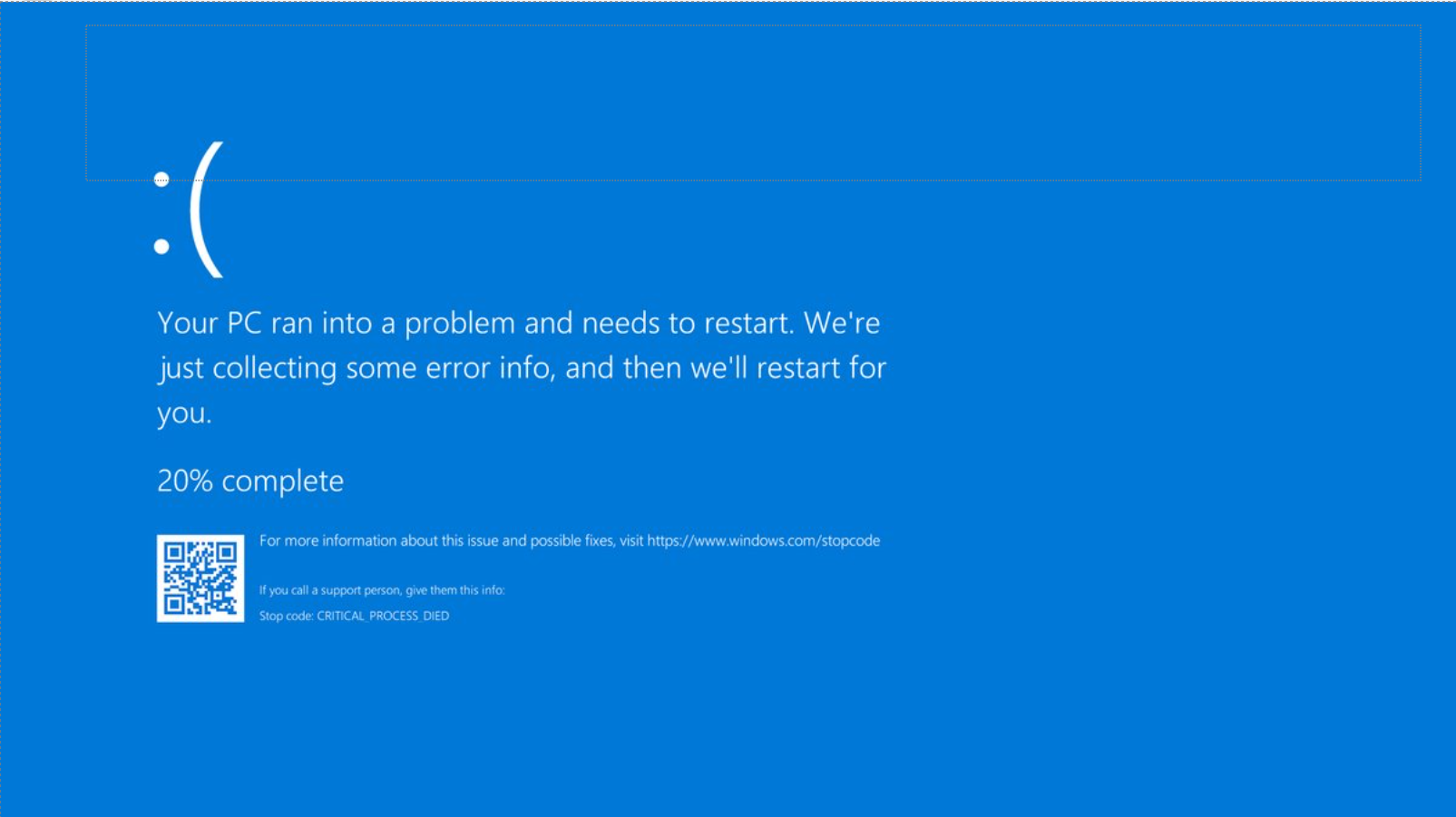
Before you start: gather useful info
- Note the exact error message and take a screenshot. Error codes or DLL names, such as
d3dx9_43.dllorD3D11.dll, are very helpful. - Record your Windows version (Settings → System → About) and GPU make/model.
- Check where the crash occurs: at launch, during a particular level, or when changing graphics settings.
- Get the latest drivers from NVIDIA, AMD, or Intel. The official vendor site is best. For stability issues, consider the “Game Ready” or “WHQL” builds.
- If the latest drivers introduce crashes, use DDU (Display Driver Uninstaller) in Safe Mode to fully remove drivers, then install a clean version.
- Turn off overlays such as Steam Overlay, Discord Overlay, GeForce Experience in-game overlay, and Xbox Game Bar (Settings → Gaming → Xbox Game Bar).
- Temporarily disable antivirus or add the game folder to exclusions—some security tools block runtime DLLs.
Step-by-step fixes (fast to advanced)
1. Restart and run the game as administrator
Simple but often effective: restart your PC to clear temporary issues. Right-click the game launcher or executable and choose “Run as administrator” to rule out permission problems.

2. Update Windows
Windows Update can install missing DirectX and system components and security patches. Go to Settings → Windows Update (or Update & Security on Windows 10) and install all recommended updates, then reboot.
3. Update or reinstall GPU drivers
4. Reinstall DirectX runtimes
Even on modern Windows, many games require legacy DirectX components such as D3DX9 and D3DX11. Use the Microsoft DirectX End-User Runtime Web Installer to restore missing DLLs. This is safe and commonly fixes errors referencing specific D3DX files.
5. Install / repair Visual C++ Redistributables
Games often depend on multiple Visual C++ redistributables (2005, 2008, 2010, 2012, 2013, and 2015–2022). Download the supported packages from Microsoft and run each installer’s “Repair” option or reinstall them. Use both x86 and x64 versions where applicable.
6. Verify game files (Steam/EA App/Ubisoft Connect/Epic)
Corrupt game files can trigger DirectX errors. Use the store client’s “Verify Integrity” or “Repair” feature to check for and re-download any damaged files.
7. Disable overlays and background software
8. Run System File Checker and DISM
Corrupted Windows files can break DirectX. Open Command Prompt as admin and run:
DISM /Online /Cleanup-Image /RestoreHealth
sfc /scannow
Restart after these complete and test the game again.
9. Adjust in-game DirectX / graphics settings
If the game allows choosing DirectX 11, DirectX 12, or Vulkan, try switching to a different renderer. Lowering or disabling features like ray tracing, HDR, or high-resolution shadows can avoid problematic code paths on some drivers.
10. Reinstall the game
If other steps fail, a full uninstall and reinstall of the game can remove corrupted runtime bundles or misinstalled third-party libraries included with the game.
Troubleshooting by specific error types
Errors naming a DLL (e.g., d3dx9_43.dll missing)
Install the DirectX End-User Runtime, not just the built-in Windows DirectX. That package restores legacy D3DX libraries used by many games.
D3D11 or D3D12 device creation failed
- Update GPU drivers and Windows.
- Try running the game with a different renderer (DirectX 11 vs. DirectX 12, or Vulkan).
- Check GPU compatibility—older cards may not support required feature levels.
“Unsupported hardware” or feature level errors
This usually means your GPU doesn’t support the DirectX feature level the game requires. Confirm minimum GPU requirements, and if your hardware is older, consider upgrading or using a lower setting or a community patch.
Crashes after driver updates
- Use DDU to fully remove drivers and install a stable earlier version that worked.
- Lock driver updates via Windows Update if a vendor driver is currently causing issues.
Advanced checks (hardware and logs)
If software fixes don’t help, test for hardware faults
